Herdr is an open-source desktop app for coding agents. Its background service, herdr-core, runs command-line programs such as Claude Code and Codex while the app summarizes their status and provides access across projects and machines. Closing the desktop window leaves work running as long as herdr-core and its host remain active.
It is useful when working with several agents at once: one implements a feature, another reviews changes, and a third is waiting for a decision. Herdr provides a common place to find and interact with those sessions. Agents can also customize the app itself, including layouts and functional panels.
This article focuses on the native Herdr desktop app: project organization, remote access, agent collaboration, interface customization, and desktop onboarding. Feature descriptions were checked against official sources on November 25, 2026.
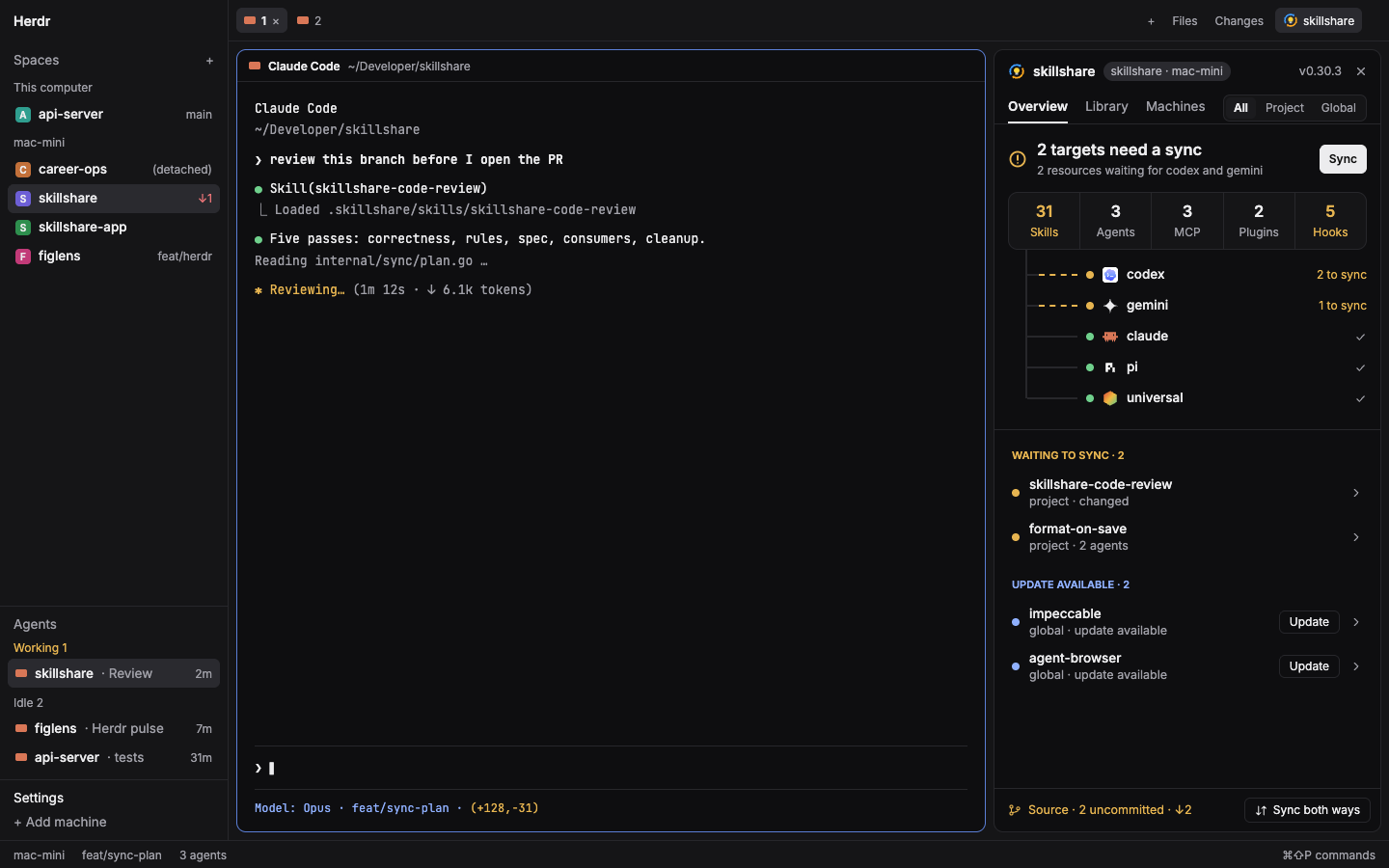
Screenshot: Herdr’s official preview asset. Image copyright remains with its respective rights holders.
Organizing terminals around tasks
Starting several agents in separate terminal windows is straightforward. Keeping track of which one is working, finished, or waiting for input requires more attention.
The desktop app organizes projects into spaces and tasks into tabs. A repository can have its own space, with a tab for each development task and terminals running agents or other commands. Terminals retain command input, logs, and interactive prompts, and can appear alongside other functional panels.
For a website login feature, for example, Codex could implement the API while Claude Code reviews the diff in the same project space, with another terminal reserved for tests. The sidebar summarizes agent activity and provides a direct route to the terminal that needs attention.
The existing agents still do the work. Accounts, model selection, and usage charges follow each tool’s own rules. Herdr supplies terminal management, session access, and coordination interfaces.
Where work runs after the window closes
The Herdr desktop app connects to herdr-core, which owns the terminals. Closing or updating the app does not stop those processes. Opening it again returns to the existing terminals.
This is especially useful with a remote host. A long-running task on a server can continue while the laptop disconnects or sleeps. Continuity depends on the execution host and its background service staying active. A task running locally on a sleeping laptop does not continue computing merely because it was started in Herdr.
If herdr-core stops or the execution host reboots, the original processes end. The desktop app restores panes and working directories, but does not automatically restart agents or resume work in progress. After restarting an agent, whether its previous conversation can be resumed depends on that agent’s own capabilities.
Several machines in one sidebar
Herdr can connect over SSH to development servers, virtual machines, and other computers, bringing their workspaces into one interface. Each machine retains its own background service and processes.
Local editing, longer tests on a Linux server, and a separate project on another development machine can share a navigation and status view. After an SSH disconnect, remote work still depends on that host and its herdr-core service remaining active. Viewing fresh output or sending input requires reconnecting.
The native product also has iPhone, iPad, and Android clients. According to the website, users can see which agents need attention, open the actual terminal, and reply from a phone. Terminal connections do not pass through a Herdr relay service. Connectivity still depends on the user’s network and SSH setup; Tailscale can also be used.
Agents can launch helpers and receive results
Herdr exposes controls that agents can use themselves. An agent can start another agent for review or testing, keep working, and then read output or receive a report.
The native app’s herdr-core service provides the hc CLI. Its official examples demonstrate these operations:
# Start tests in the background
hc run --bg --name tests cargo test

# List running terminals
hc ls

# Wait for the process to exit, then read its last output
hc wait tests
hc read --lines 60 tests
A helper agent can also use hc send to send a report or a request for clarification to another terminal. This supports a workflow in which a primary agent implements a feature and receives feedback from a helper.
Inside the herdr-core environment, an agent can read hc --skill for instructions on starting tasks, waiting for completion, reading terminals, and sending messages. These controls use the same runtime as the desktop app, where users can inspect the corresponding terminals.
Task boundaries and acceptance criteria still need to be defined. Session management does not prevent conflicts when several agents edit the same repository. Dividing ownership by file or using separate Git worktrees remains a workflow decision.
Let an agent read the guide, then customize the app
The official guide includes a step after starting an agent: ask it to read the local application guide before describing the changes you want. Send this as a prompt to the agent:
Read ~/.config/herdr-app/AGENTS.md
The document describes the app’s file structure, commands, customization interfaces, and constraints. An agent can use it to edit window layouts in layouts/, fonts and sounds in settings.json, shortcuts in keys.json, or JavaScript modules in mods/. The app rewrites AGENTS.md on startup, with the local guide and accompanying type definitions matching the installed version. Put lasting notes about your setup in AGENTS.local.md.
Describe the interface change you want
After the agent reads the guide, a request can be as specific as:
Put a timer on each tab showing how long its agent has been working.
Preserve my configuration; clone any shipped layout or mod before changing it.
Other examples in the official guide include an agent board with needs-you, working, and done columns, and phone notifications through ntfy. Shipped layouts and mods are refreshed on app startup, so the guide requires cloning them before changing their structure or code. A new layout can coexist with the original; Ctrl+Shift+L switches between layouts. Customization can change functionality and workflow as well as appearance.
Add a shared layout or mod
Herdr distinguishes a layout, which defines the whole window and its components, from a mod, which adds functionality to an existing interface. Shared pages provide implementation files and a RECIPE.md describing how to build the feature, so an agent can understand and adapt it.
For example, the Pasture layout represents agent states with sheep graphics; clicking one opens the corresponding terminals. To add it, send:
Read ~/.config/herdr-app/AGENTS.md, then add this layout: herdr.dev/layouts/herdrdev/pasture
For tmux-style prefix shortcuts in the current interface instead, choose the Tmux prefix mod and send this separate request:
Read ~/.config/herdr-app/AGENTS.md, then add this mod: herdr.dev/mods/herdrdev/tmux-prefix
It adds a Ctrl+B prefix and key hints to Herdr; it does not run or install tmux. These are independent examples to choose from.
Review imports and verify the result
The application guide requires agents to read the instructions and every file before importing, and disclose network access, external program execution, or reads outside the mod’s own directory. Existing layouts must be preserved, name collisions resolved by renaming, and conflicting shortcuts confirmed before replacement.
Each mod also needs a passing herdr-app check and a trial in the actual app. The check runs initialization logic, so it is not a substitute for code review. Mods can run commands and access the network; assess third-party modules as executable code.
Supported systems and agents
The desktop app supports Apple silicon macOS, Linux x86_64/arm64, and Windows x86_64, with additional clients for iPhone, iPad, and Android. Platform-specific installation instructions are on the download page.
Programs that run in a terminal can run in Herdr. Those supporting the OSC 7501 status protocol can also report that they are working, finished, or waiting for input. Programs without status reporting still run, but do not appear in the corresponding agent status list. Inspect the actual terminal when evaluating results.
The desktop app and herdr-core are Apache 2.0 open source. The project says the products are free; agent subscriptions, API usage, and remote infrastructure have their own costs.
A brief comparison with T3 Code
T3 Code also brings Claude Code, Codex, and other agents into a shared interface, with remote host and mobile access. Both suit multitask development; the main distinction is how users interact with their work.
Herdr centers on real terminals, preserving each agent’s commands, output, and interactions while adding background services, status summaries, and CLI session controls. T3 Code provides a unified conversation interface with model switching within a thread, integrating diff review, commits, pushes, and PR creation into the workflow. It also includes terminals, so interaction is not limited to chat.
Consider Herdr to retain the agents’ terminal workflows and compose helpers and commands yourself. Consider T3 Code to handle conversations, change review, and PR delivery in a unified interface. See the T3 Code guide for details.
Getting started with the desktop app
- Install the desktop app. Follow the instructions for your system on the Herdr download page. Installation includes herdr-core. On Apple silicon macOS, download the
.dmgand drag Herdr into Applications; Linux and Windows users should follow their respective instructions. - Prepare a coding agent. Install and sign in to Claude Code, Codex, or another tool on the execution host, and confirm it runs normally. Herdr uses the tools’ existing accounts and configuration.
- Start a task. Open Herdr and use the
+in the top tab bar to start an agent or another program. Check the terminal’s working directory before beginning, so the task runs in the intended project. - Have the agent read the app guide. Use the prompt above to read the local
AGENTS.md, then request layout changes, a module, or a helper as needed. Customization is optional when simply viewing or running existing tasks. - Check status and continuity. Assign a small task and inspect its terminal output. Agents supporting OSC 7501 also report status in the sidebar. Close and reopen the desktop window to check that the existing terminal returns; the host and herdr-core must remain running.
For one agent in one project, an existing terminal may be sufficient. Herdr becomes more useful when several tasks need attention, execution moves to remote machines, or agents need a common environment for working together.
A note on the separate Herdr TUI
Herdr TUI, in the herdrdev/herdr repository, is a separate terminal application with its own server and herdr CLI. It does not share sessions or control commands with the desktop app covered here. brew install herdr installs the TUI; to use the desktop interface in the screenshot, follow the desktop installation steps above.
Sources:
- Herdr (Herdr, undated; checked November 25, 2026)
- Herdr desktop app repository (Herdr, undated; checked November 25, 2026)
- Download (Herdr, undated; checked November 25, 2026)
- Guide (Herdr, undated; checked November 25, 2026)
- Desktop app agent guide (Herdr, undated; checked November 25, 2026)
- Pasture (Herdr, undated; checked November 25, 2026)
- Tmux prefix (Herdr, undated; checked November 25, 2026)
- Herdr TUI repository (Herdr, undated; checked November 25, 2026)
- herdr-core (Herdr, undated; checked November 25, 2026)
- T3 Code (Ping Labs, undated; checked November 25, 2026)
Author: Cyber Herald
Original URL: https://torchtree.com/en/post/herdr-coding-agent-workspace/
Publish Date: 2026-11-25
Last Updated: 2026-11-25
License: CC BY-NC-SA 4.0